
Roles & Permissions
Every person in your FluxHR workspace has a role. The role decides which pages they see and what they can do — and admins can fine-tune the details.
How Roles Work
When you invite someone to your company, you pick a role for them. That's it — FluxHR takes care of the rest:
- The role decides which parts of the app they can open — recruitment (jobs, candidates, pipelines), HR (employees, time off, time tracking), or both.
- The role decides whether they can edit things or only view them.
- On top of that, admins can switch individual abilities on or off per role — like seeing candidate salaries or running AI tools (see Fine-Tune Role Permissions).
Tip: You can change anyone's role at any time — the change applies immediately, no re-invite needed.
The Five Roles
Choose the role that matches what the person does day-to-day:
| Role | Best for | What they can do |
|---|---|---|
| Admin | Founders, team leads | Everything: full recruitment + HR access, team management, role permissions, billing. Maximum 3 admins per company. |
| Recruiter | Recruiters, sourcers | Full recruitment access — create jobs, manage candidates and pipelines, schedule interviews, see analytics, run AI tools. No team or billing management. |
| Hiring Manager | Department heads who review candidates | View jobs and candidates (read-only) and leave comments on candidates. No editing, no analytics by default. |
| HR Admin | HR / People operations | Full HR access — employee directory, departments, onboarding, leave management, time tracking. Does not see recruitment pages. |
| Employee | Everyone else in the company | Read-only HR access — view the directory, request time off, track their own time. |
Roles combine with the Employee Directory: any member who is also added as an employee (in the Employee Directory) automatically gets read-only HR access on top of their role. Example: a Hiring Manager who is also an employee sees Jobs and Candidates plus the HR pages — directory, time off, time tracking.
Note: The older Interviewer and Viewer roles were merged into Hiring Manager. If your teammates had those roles, they are now Hiring Managers with the same abilities.
Invite a Team Member
Only admins manage the team. To invite someone:
- Open Settings → Team in the sidebar.
- Click "Invite Member" (top right).
- Enter their email, pick a role, and optionally add a personal message.
- Click "Send Invitation" — they'll get an email with a join link.
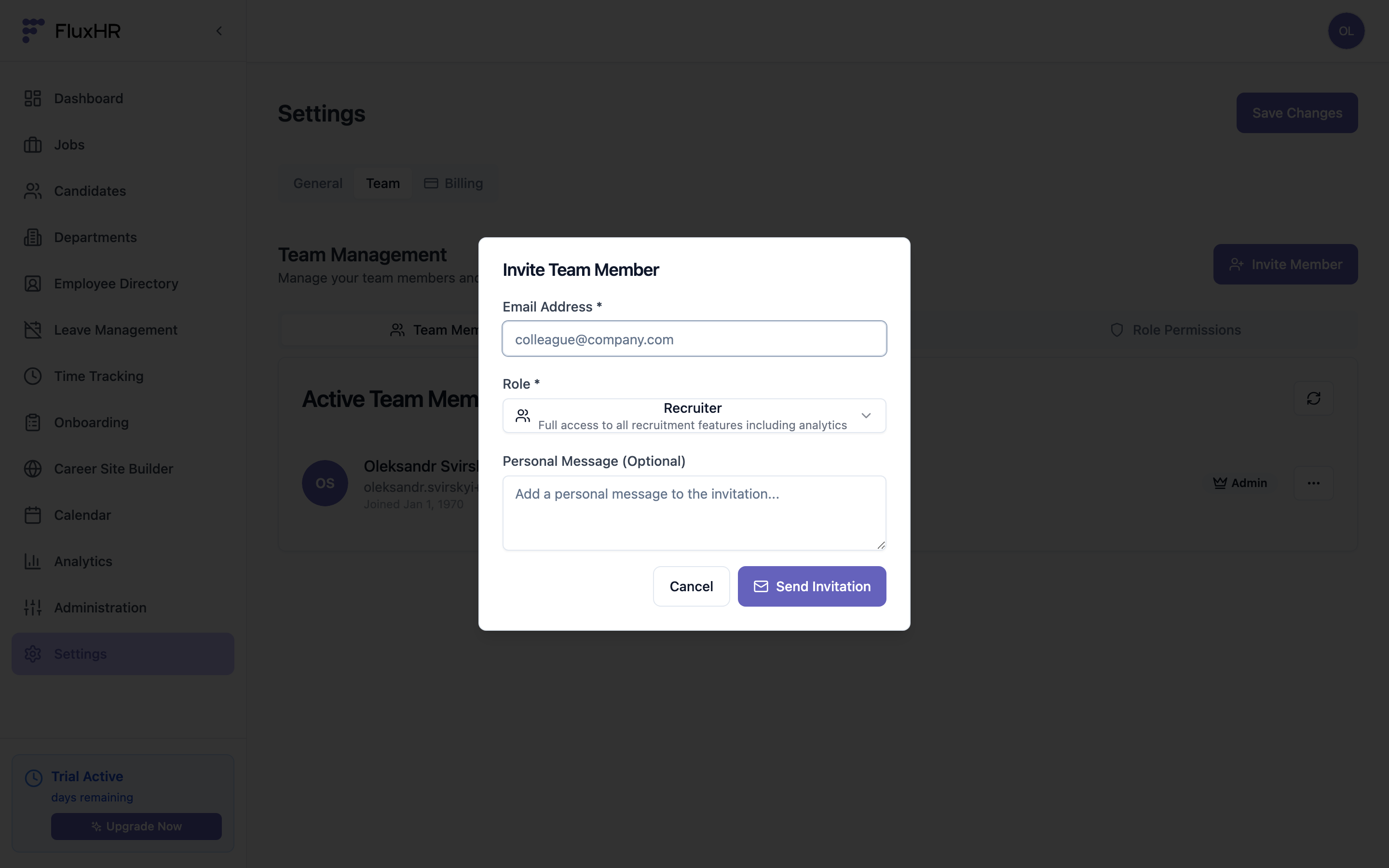
The invite dialog — each role shows a short description so you can pick the right one
Change a Member's Role
- Open Settings → Team → Team Members.
- Find the person in the list — their current role is shown as a badge next to their name.
- Click the "⋯" menu on their row and choose "Make <Role>" (e.g. "Make Recruiter").
- The same menu also lets you remove someone from the team.
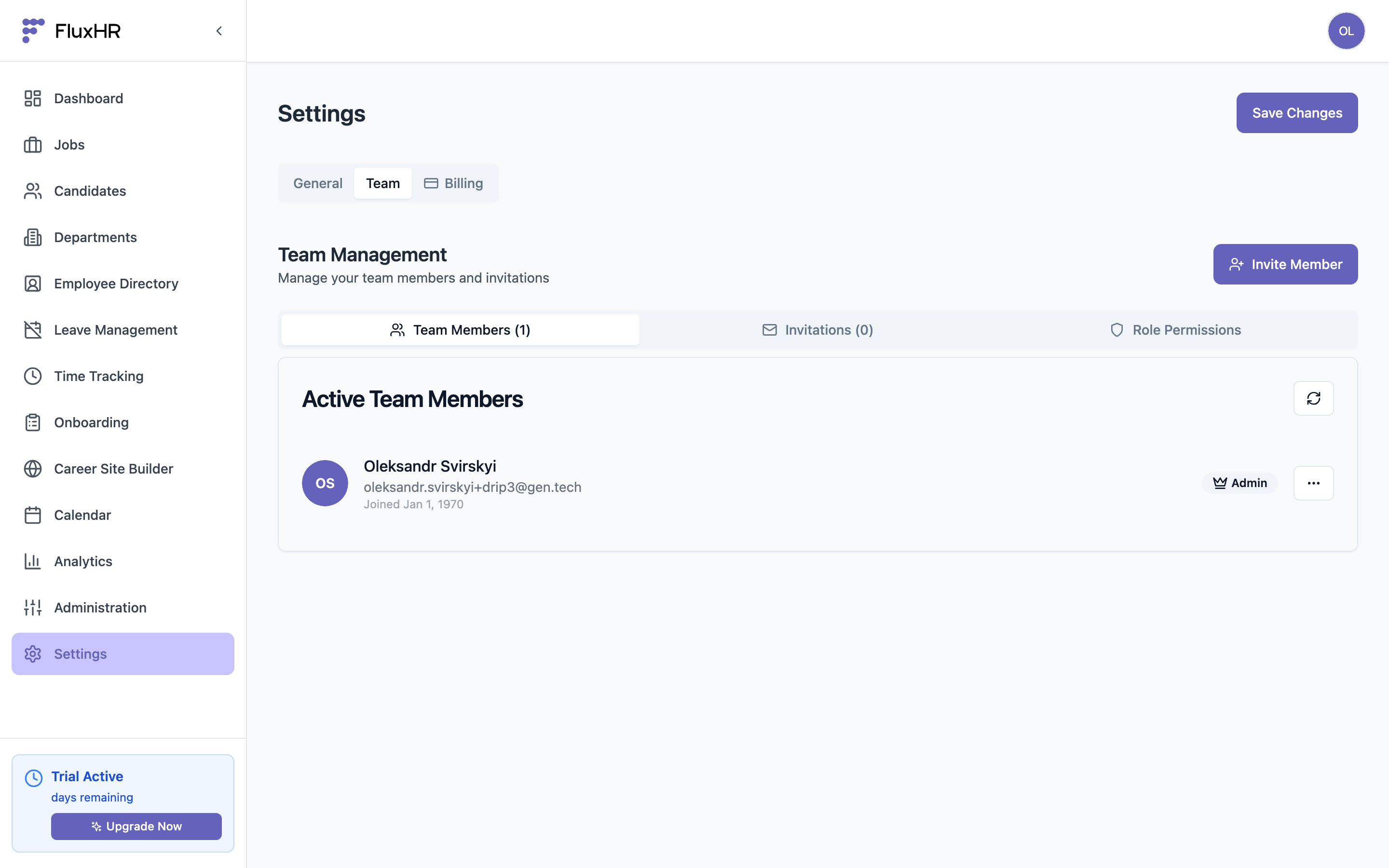
The Team Members list — use the ⋯ menu on any row to change a role or remove a member
Fine-Tune Role Permissions
Beyond page access, admins can switch specific abilities on or off for each role in Settings → Team → Role Permissions:
| Permission | What it controls | On by default for |
|---|---|---|
| View candidate salary | Salary expectations on candidate cards and profiles | Admin, Recruiter |
| View candidate comments | Reading notes and comments left on candidates | Admin, Recruiter, Hiring Manager |
| Add candidate comments | Leaving notes and comments on candidates | Admin, Recruiter, Hiring Manager |
| Run AI tools | AI candidate overview (AI 360) and transcript analysis | Admin, Recruiter |
| View recruitment analytics | Job and company-wide recruitment analytics and reports | Admin, Recruiter |
Flip any switch to change it — the setting saves instantly and applies to everyone with that role:
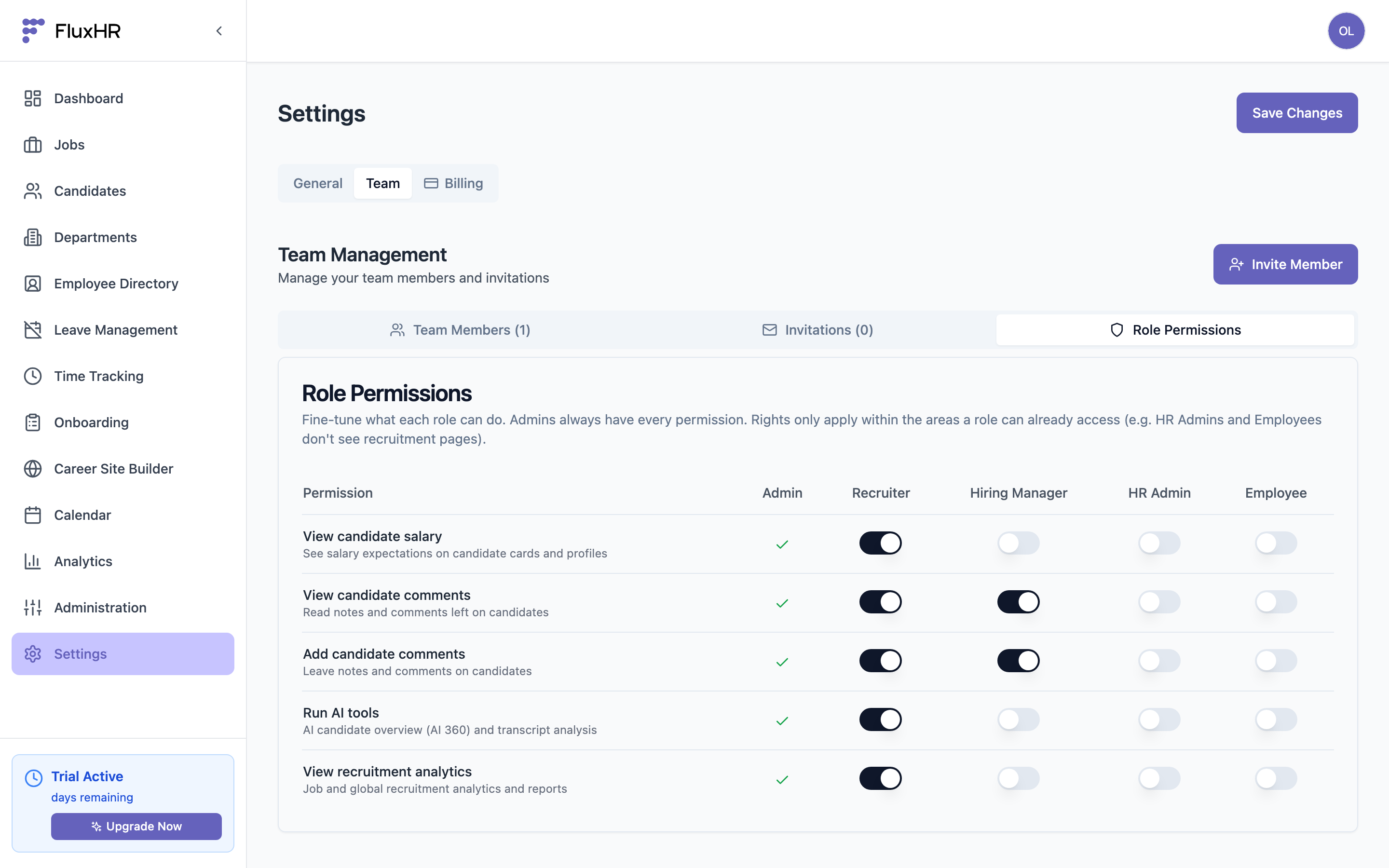
The Role Permissions matrix — Admin is always fully enabled; the other four roles are up to you
Good to know: permissions only work inside the areas a role can already open. Giving "View recruitment analytics" to Employee has no effect, because Employees don't see recruitment pages at all.
Rules & Limits
- Admins always have every permission. The Admin column can't be switched off — that way you can never lock yourself out.
- Maximum 3 admins per company. Pending admin invitations count toward the limit. To add a new admin once you're at 3, downgrade or remove an existing one first.
- Only admins can invite members, change roles, edit role permissions, and manage billing.
- Changes apply immediately — no logout or re-invite required.