ATS — Recruitment
Everything for hiring: post jobs, source and track candidates through a visual pipeline, collect interview feedback, and let AI speed up the busywork — from first application to signed offer.
Overview
The ATS (Applicant Tracking System) is where your recruiting happens. A typical flow looks like this:
- Create a job — the open position candidates apply to.
- Add candidates — manually, from a resume, via bulk import, the career site, or the Chrome extension.
- Move them through the pipeline — Applied → Screening → Interview → Offer → Hired.
- Collect feedback & use AI — notes, interview scorecards, AI candidate overviews.
- Send the offer — and hand the new hire straight to the HR module.
Dashboard
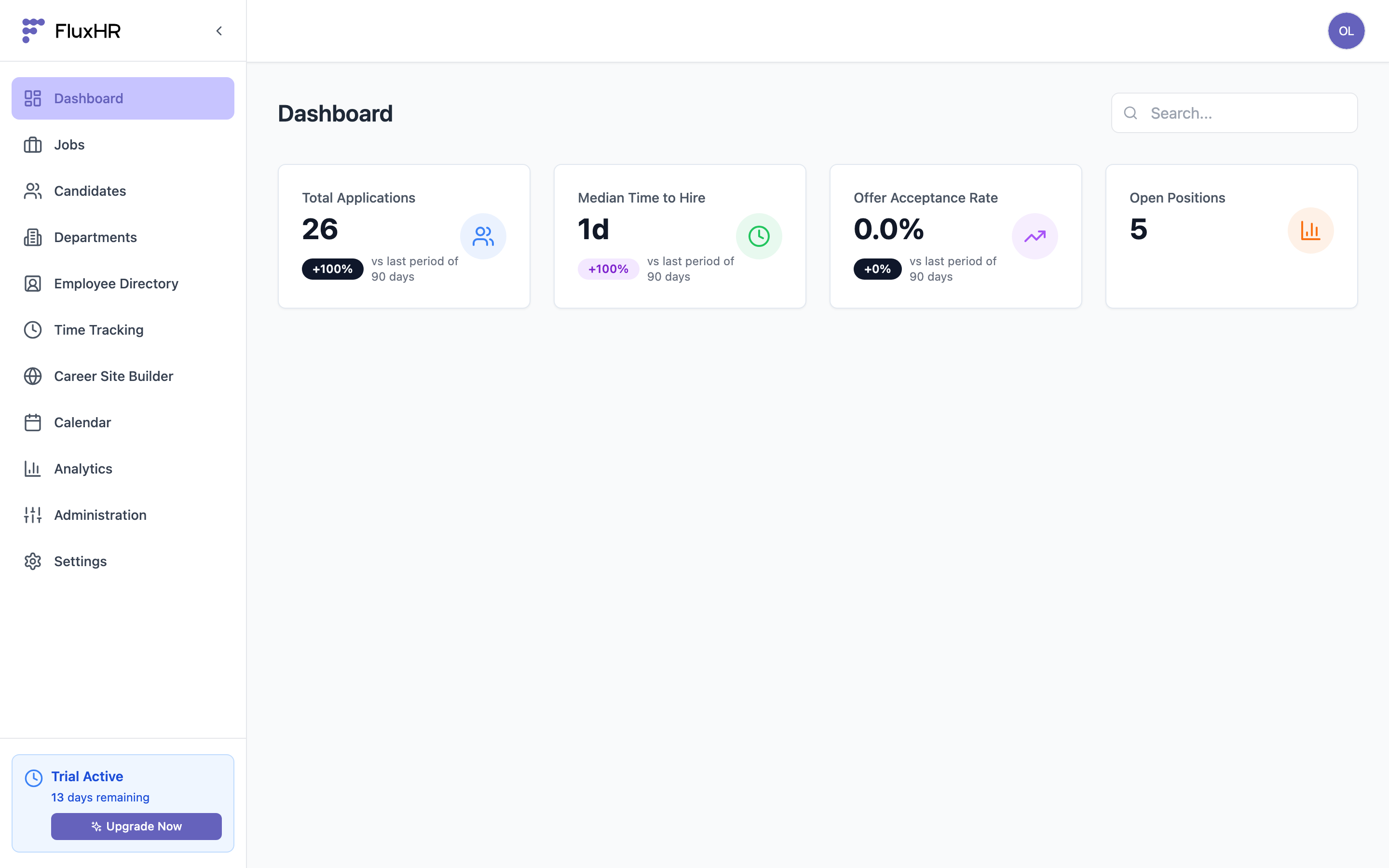
When you log in you land on the Dashboard — a live snapshot of your hiring: active jobs, total candidates, upcoming interviews, and recent activity. Use it as your daily starting point.
Create & Manage Jobs
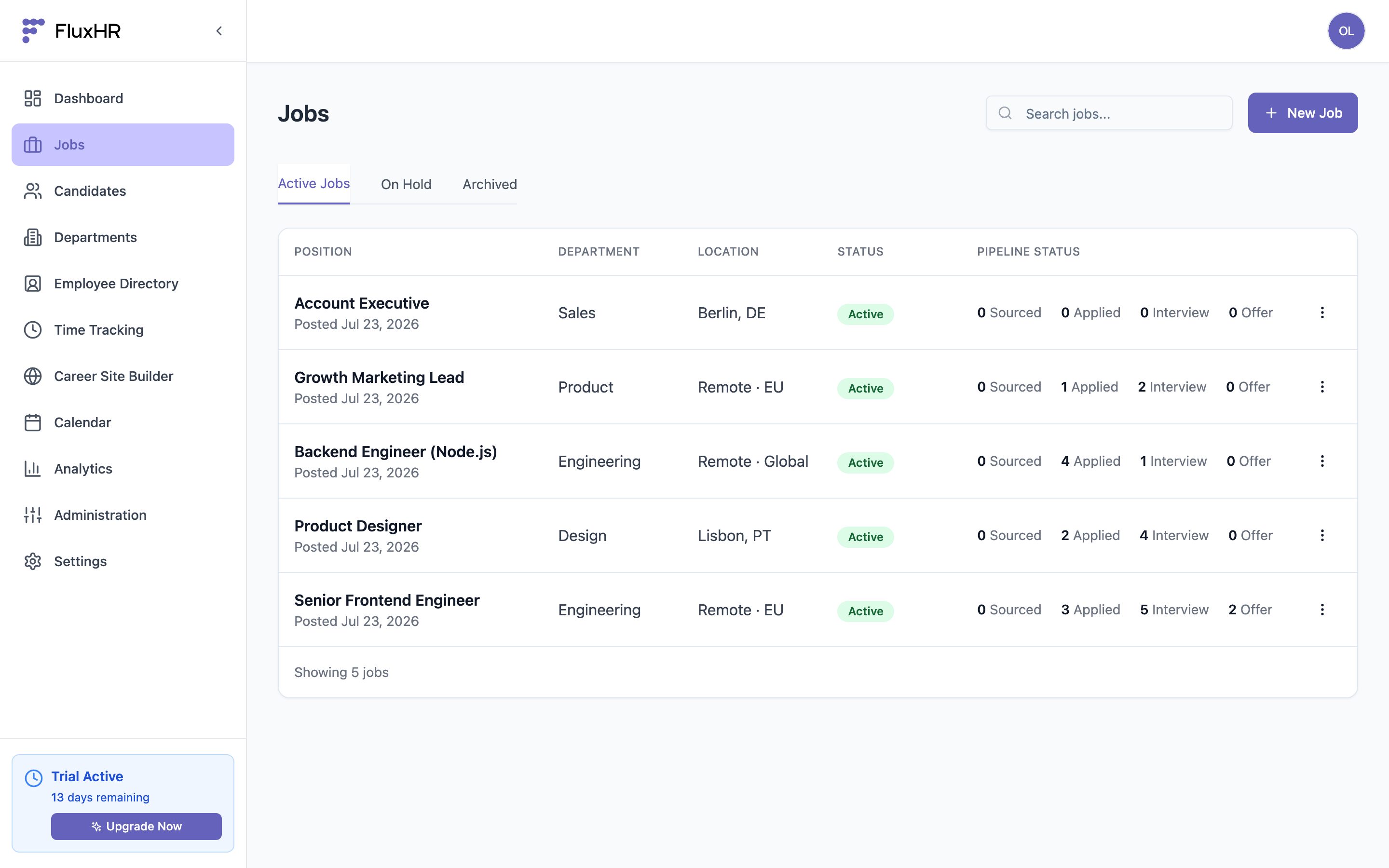
A job (vacancy) is an open position with its own pipeline, candidates, and career-site posting. Open Jobs in the sidebar to see all your roles grouped by Active, On Hold, and Archived, each with a live pipeline count.
To create one, click "+ New Job" and fill in:
- Title — e.g. "Senior Frontend Engineer".
- Department and Location (or Remote / Hybrid).
- Description — rich-text with formatting.
- Optional salary range and required skills.
- Set status to Published so it can appear on your career site and in the extension.
Hiring Pipeline
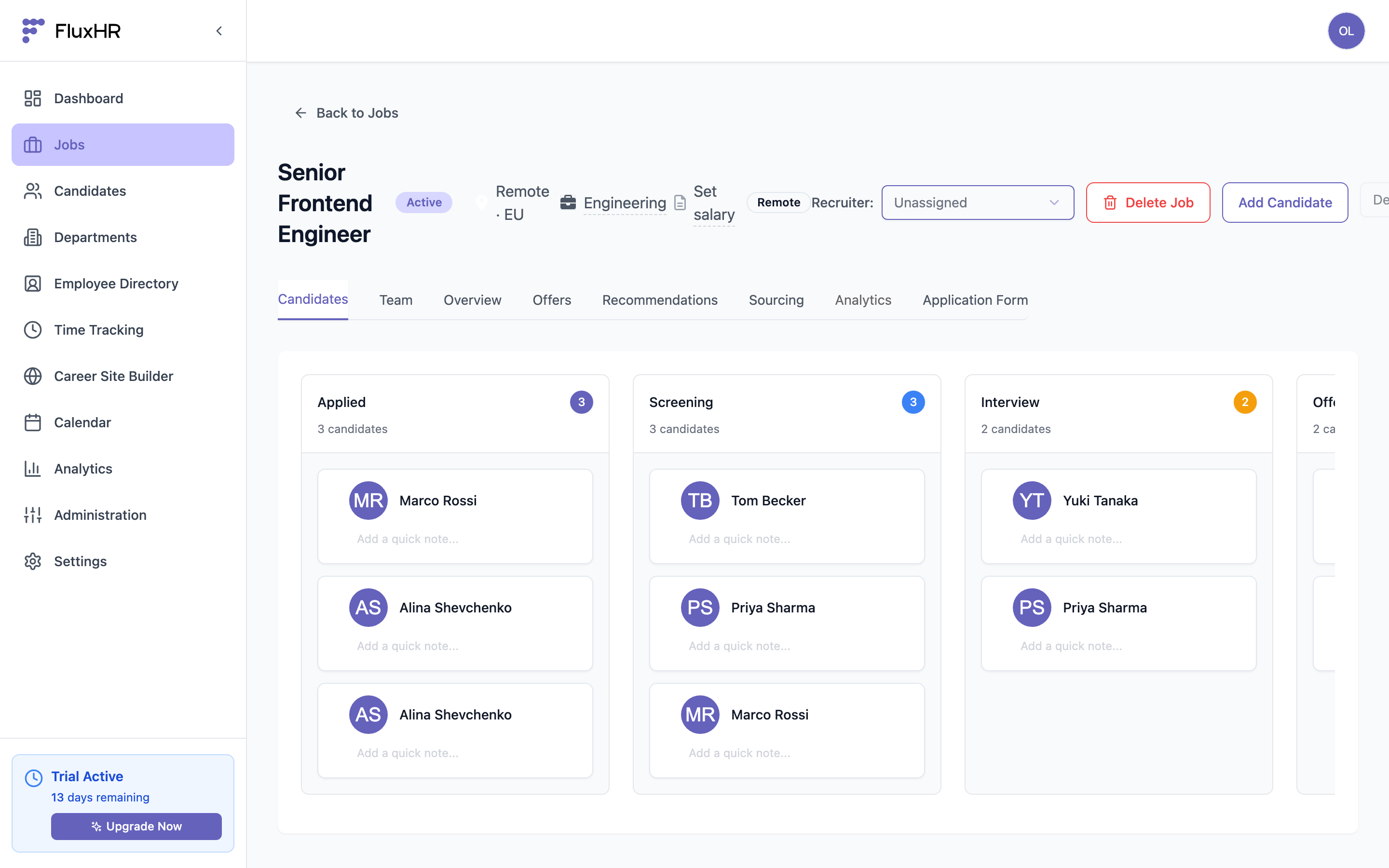
Each job has a Kanban pipeline board. Candidates move left-to-right through the stages: Applied → Screening → Interview → Offered → Hired (plus a Rejected stage). Drag a candidate card to a new column to change their stage — every move is recorded on the candidate's timeline.
Candidates & Search
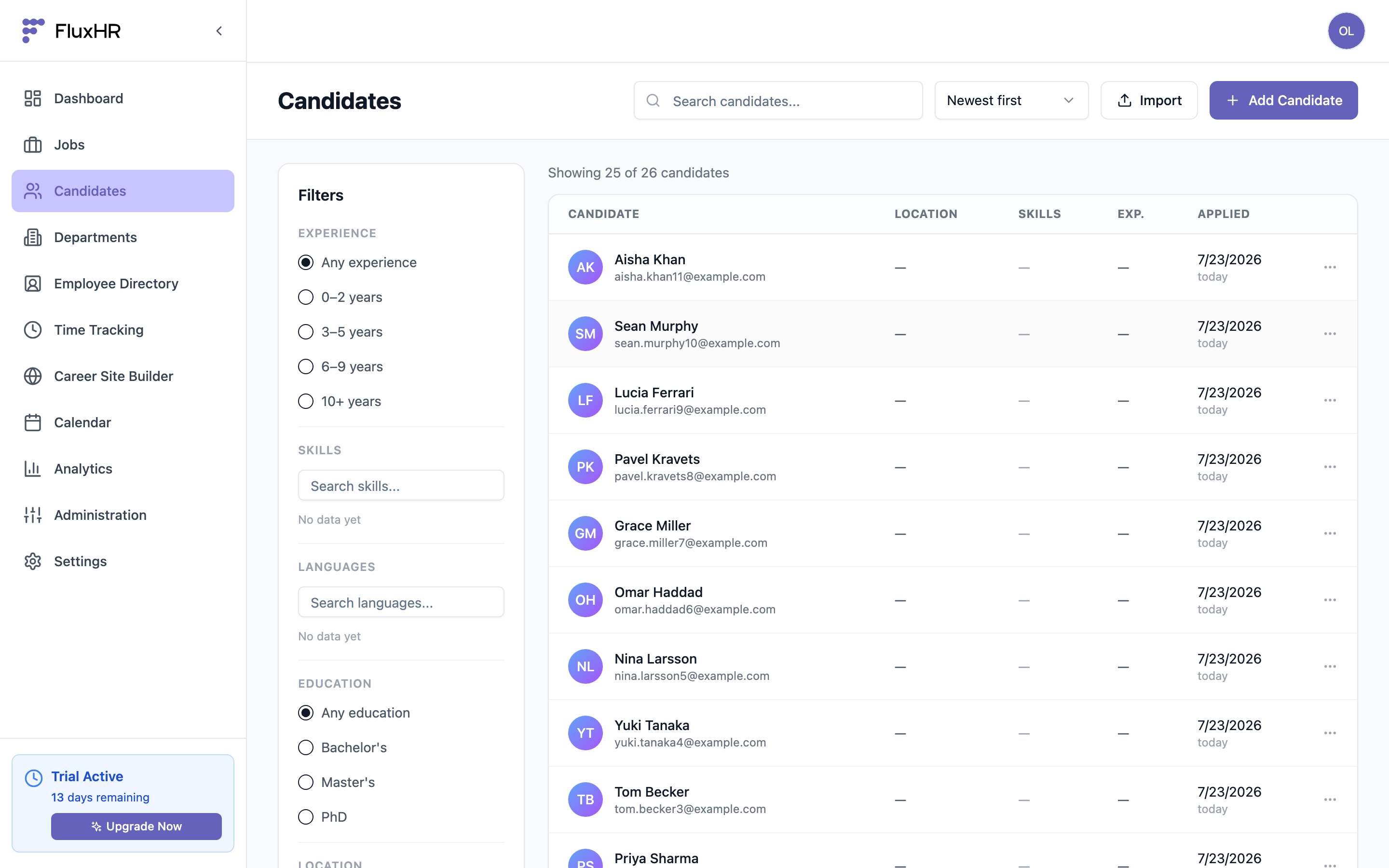
The Candidates page is your whole talent pool across every job. Search by name, and use the left filter panel to narrow by experience, skills, languages, education, and location.
Adding Candidates
There are several ways to get candidates into FluxHR:
- Manually — click "Add Candidate" and enter name, email, and phone.
- From a resume — upload a PDF/DOC/DOCX and FluxHR parses it into a full profile (name, contact, experience, skills). Parsing uses AI by default.
- Chrome extension — add candidates straight from a LinkedIn profile. See the Extension guide.
- Career site — candidates apply themselves and land in your pipeline automatically.
Bulk Import
Moving from another ATS or have a stack of resumes? Click "Import" on the Candidates page:
- Upload resumes — up to 20 PDF/DOC/DOCX files at once; each is parsed into its own candidate.
- Import a CSV — up to 1,000 rows. Recognized columns: First Name, Last Name (or Name), Email, Phone, Position, Company, Skills, Location, LinkedIn, Summary. Duplicate emails are skipped, and you get a per-row result report.
Candidate Profile
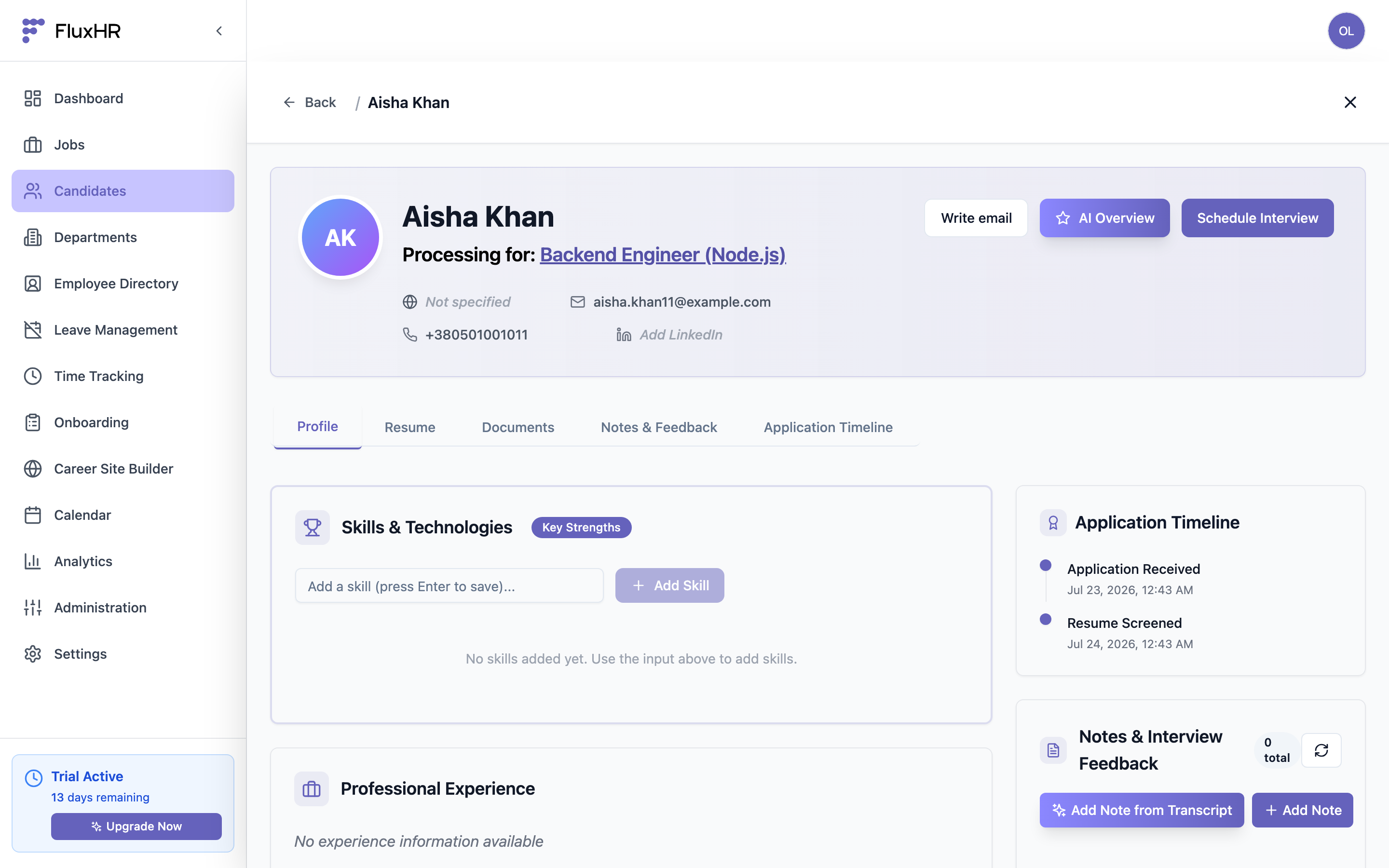
Click any candidate to open their profile. Tabs organize everything you know about them:
- Profile — skills, experience, education, contact.
- Resume — the original document.
- Documents — anything else you attach.
- Notes & Feedback — team comments and interview feedback (below).
- Application Timeline — a full audit trail of every action on this candidate.
Notes & Interview Feedback
Use the Notes & Feedback tab to capture your impressions and structured interview feedback. Every note is shared with everyone who works with the candidate and is posted under your name automatically — so the whole hiring team stays aligned.
- Click "Add Note", type your feedback, and save.
- Or click "Add Note from Transcript" to have AI turn a raw interview transcript into a structured assessment you can review and edit before saving.
AI Tools
FluxHR includes AI helpers to cut busywork:
- AI Overview (AI 360) — a one-click summary of a candidate: strengths, gaps, skills, and fit.
- Transcript analysis — turns an interview transcript into structured feedback.
- Recommendations — ranks candidates against a job by skill match.
Interviews
From a candidate profile, click "Schedule Interview". Connect your Google or Outlook calendar (in Administration) to send invites with real availability and avoid double-booking. Scheduled interviews appear on the candidate's timeline and in your Calendar.
Career Site
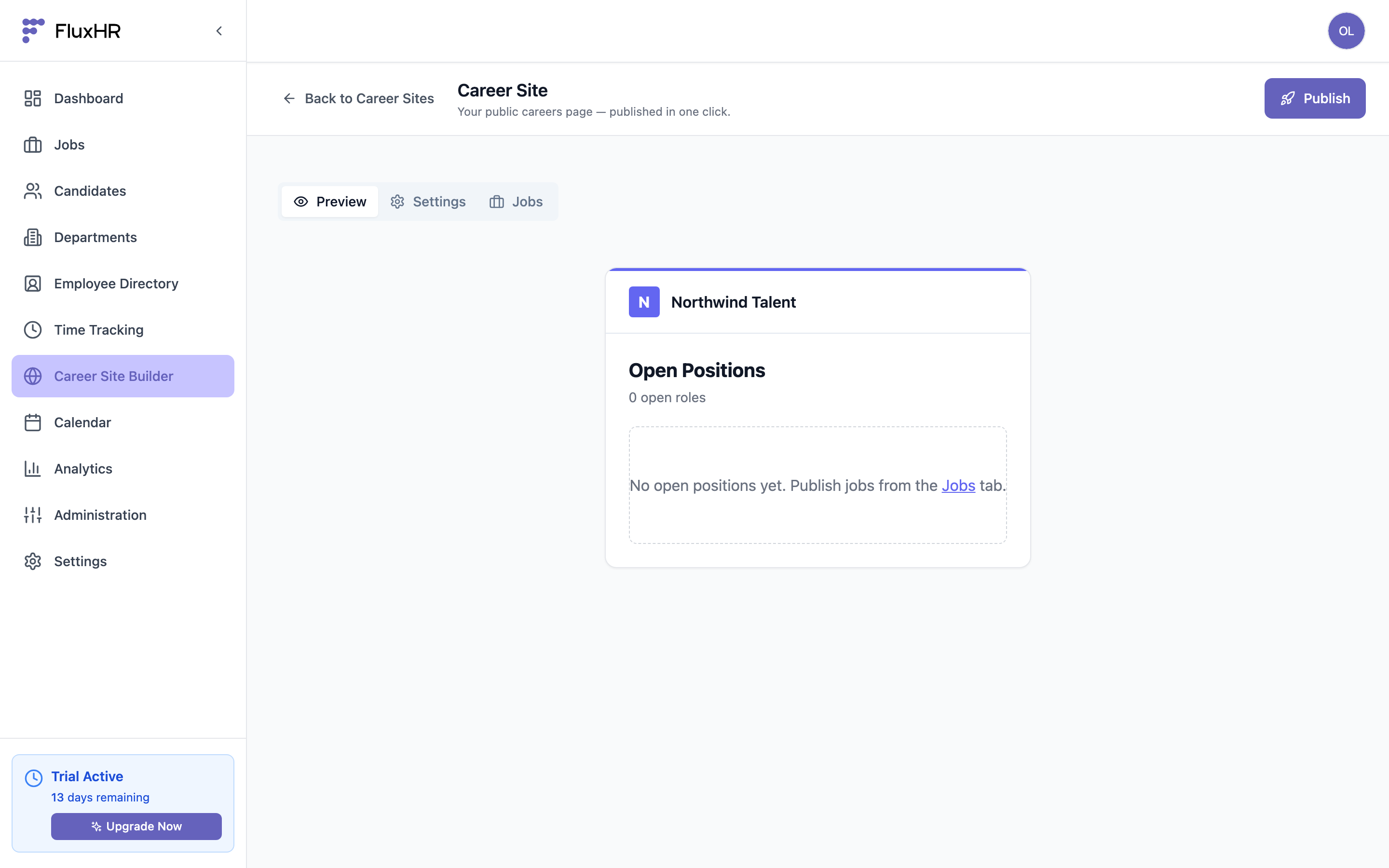
The Career Site Builder publishes a clean public jobs page on your own subdomain (e.g. your-company.fluxhr.com). Set your logo and brand color, choose which published jobs appear, pick languages, and hit Publish. Candidates apply through a built-in form and drop straight into your pipeline.